Best Ways to Organise iPhone Photos and Free Up Space

Sian Victoria © - Browsing a iphone
Are you planning a new trip, but your iPhone’s photo gallery is cluttered with old pictures? No worries—iOS’s built-in tools can help. In this article, we’ll show you two simple steps on how to organize your iPhone photos and prepare your gallery for new memories: first, delete all the unnecessary images, then manage the ones you want to keep. Follow our tips, and you’ll be able to find your future photos quickly without endless scrolling.
Step 1: Declutter Your iPhone and Delete Unwanted Photos
Before you organize your photo gallery on iOS for your trip, it’s a good idea to delete any unnecessary or outdated photos from your Photos app. It might take a little time, but it’ll make your next steps easier, as it allows you to concentrate only on the photos you really need. Plus, it frees up storage space on your iPhone and improves performance.
We won’t walk you through deleting regular photos—you probably already know how to do that. Instead, we’ll concentrate on less obvious types of photos you should review and delete. These often-overlooked files can take up storage space and make your gallery feel cluttered.
1.1 Remove Duplicate Photos
One type of photo that many users overlook is duplicates. These often appear when you import photos from multiple devices, save the same image more than once, or accidentally take identical shots. While they may go unnoticed, they take up twice the space in your storage. To optimize space, it’s best to keep just one version and delete the duplicates.
Fortunately, iOS now includes a built-in feature that automatically detects and groups duplicates in your photo library. This tool allows you to review and delete them easily. However, keep in mind that this function only works for exact duplicates—it won’t detect similar photos with minor differences. We’ll cover how to handle those later.
- Open the Photos app on your iPhone.
- Scroll down and in the Utilities section, select Duplicates.
- You will see groups of identical photos. Tap Select in the top right corner.
- To delete all duplicates at once, tap Select All and then Merge.
- iOS will automatically retain the highest-quality version and move the duplicates to the Recently Deleted album.

What should you do with similar photos that aren’t exact duplicates? Manually searching for and deleting them is an option, but if you have thousands of images, it can be incredibly time-consuming.
Instead, you can use duplicate and similar photo remover tools, which use advanced algorithms to identify images with differences—such as changes in camera angle or subject position—and group them for easy review. Unlike iOS’s built-in tool, which automatically selects the best version, these apps allow you to manually choose which photo to keep based on your preferences.
Tip: We suggest you review other media types in the Photos app, such as Live Photos, Bursts, etc. You might find images you no longer need, and deleting them can help free up even more iPhone storage space.
1.2 Empty the Recently Deleted Album
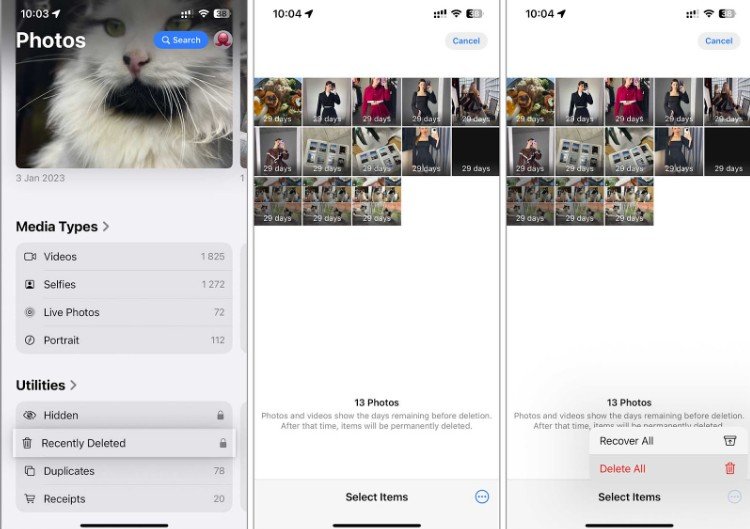
Everything you delete from the Photos app goes to the Recently Deleted album, where it stays for 30 days before it’s permanently removed. During that time, you can recover any photos or videos you accidentally deleted. However, while they’re in this album, they still occupy space. If you want to see an immediate drop in your storage usage, you’ll need to clear the Recently Deleted folder manually. It’s a really simple process.
- Open the Photos app on your iPhone.
- Scroll down to find the ‘Recently Deleted’ album and tap to open it. Here, you will see all the photos and videos pending permanent deletion.
- Tap ‘Select’ in the upper right corner of the screen.
- You can choose ‘Delete All’ to permanently remove all items or select individual photos to delete only specific ones.
- Confirm the deletion to immediately free up the space.
Step 2: Manage Your Photos on an iPhone
Now that you’ve cleared out unnecessary photos, it’s time to organize your pictures on your iPhone. Below, we’ll offer two methods to help you do that. One method improves your gallery search, while the other offers more structured ways to store your photos.
2.1 Tag Faces and Add Locations to Photos
You might have noticed that your iPhone automatically groups photos of people and animals based on similar faces or objects. These collections usually don’t have names, but you can add one yourself. That way, you can create an album—say, for all your pet’s pictures—and easily find it later by its name.
- Open the Photos app, scroll to ‘People & Places,’ and tap on it.
- You will see unnamed face collections; tap a face to open.
- Tap ‘Name This Person’ or ‘Name This Pet’ at the middle of the screen and enter a name for this collection.
- Confirm the name to create a personalized album for that person or pet.

Your iPhone also organizes photos by location using geotagging data and groups your pictures by where they were taken. You can even set locations manually to create custom albums for different places you’ve visited. This not only makes it easier to relive past trips but also helps you quickly find specific photos.
- Open the Photos app and select the photo you wish to tag with a location.
- Tap on the three dots icon to reveal additional options, and tap on ‘Adjust Location.’
- Type the location where the photo was taken, or select a suggested location.
- Confirm your selection to tag the photo with the location.

2.2 Create Custom Albums and Folders
If you like a more organized Photos app and don’t rely on search, setting up your own album and folder system is a great option. The Photos app lets you create custom albums, so you could make a folder for each year with albums for months and special events or a travel folder with albums for different trips. These are just a few ways to sort your photos on an iPhone—how you organize them is totally up to you.
- Launch the Photos app on your iPhone.
- Scroll to the ‘Albums’ tab at the bottom of the screen, where all your current albums are displayed.
- Tap the ‘Create’ button at the top left of the screen and select ‘New Album.’
- Provide a name for the album that reflects the theme or the type of photos it will contain.
- Browse your library, select the photos you wish to add, and then tap ‘Add’ to include them in the album.
- After naming your album and selecting the photos, click ‘Done’ to complete the process.
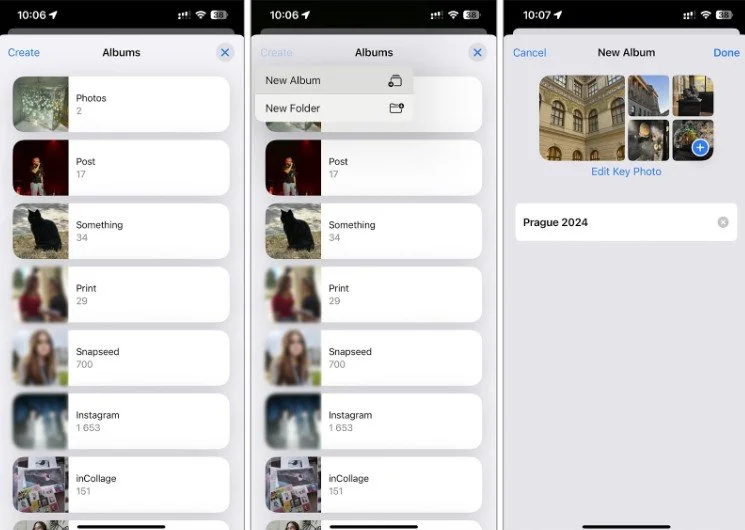
Creating folders in the Photos app on your iPhone is similar to creating an album. Just tap the “Create” button and choose “New Folder” instead of “New Album.” Once you’ve named your folder, you can add existing albums to it by selecting the ones you want and confirming your choices.

To conclude
That’s it! With just a few simple steps, you can organize your Photos app and get it ready for all the new photos and videos from your travels. We know that when you’re planning a trip or a long journey, the excitement often leads to snapping many photos. Therefore, we advise you to apply these methods before your trip to sort new images immediately or after your return to manage everything at once. Also, do not forget to routinely delete unnecessary photos—including poor shots and duplicates—to prevent your Photos app from becoming cluttered.