How to Free Up iPhone Storage Without Deleting Important Files
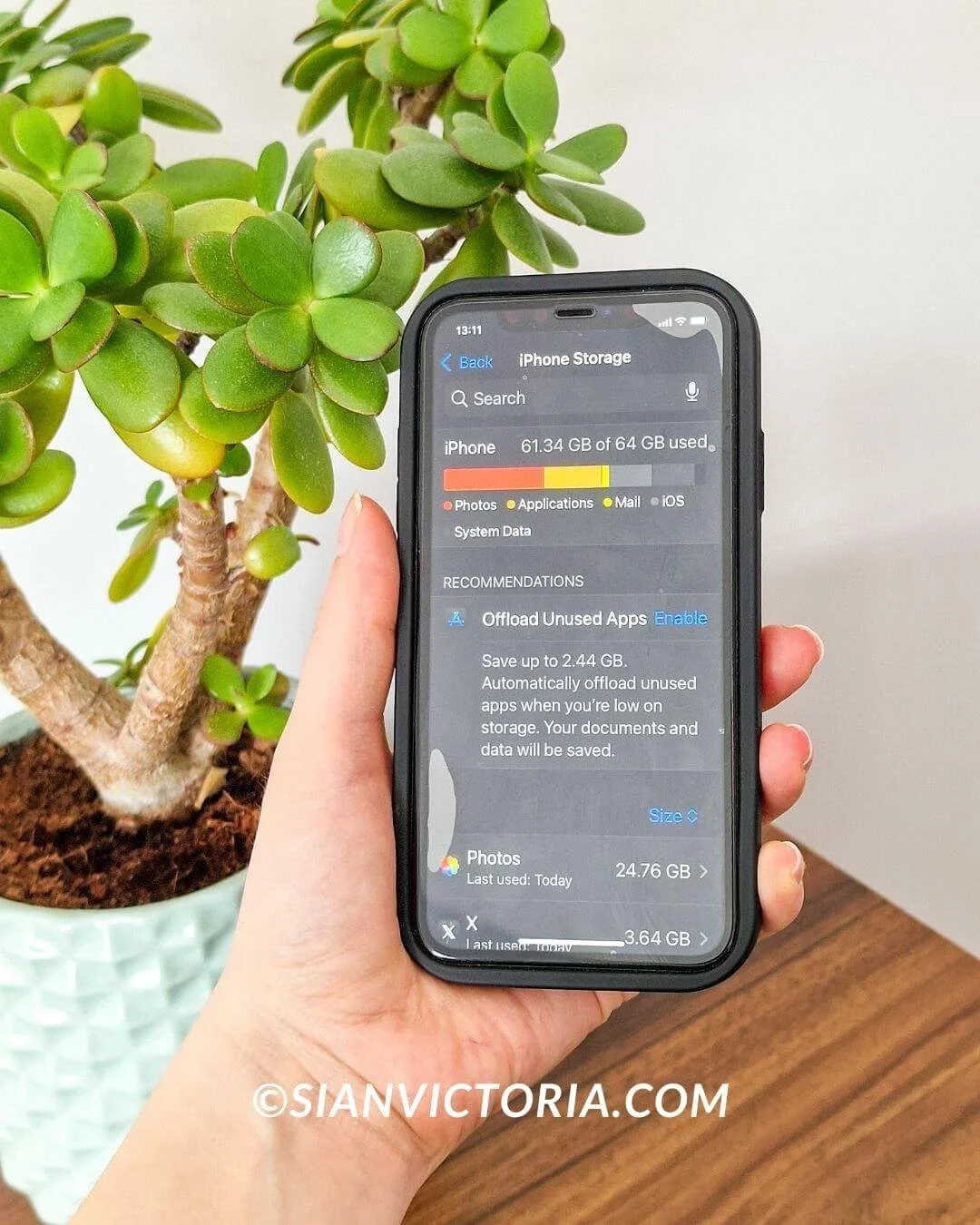
Sian Victoria © - Holding iPhone on the storage screen
If you need to free up some space on your iPhone and there is a desire to avoid losing cherished items, there are a few free simple methods to create room without sacrificing anything valuable. Now more than ever, you can make more storage on your iPhone without painful sacrifices. Let’s start.
How to Clear iPhone Media for More Storage
First, we’ll start with the media library. If you’re like me, you have thousands of photos and videos - probably more than you even realize. And if that’s the case, your media library is likely taking up most of your iPhone’s storage. To check if this is true for you, head into iPhone Storage:
- Open Settings.
- Tap General.
- Select iPhone Storage.
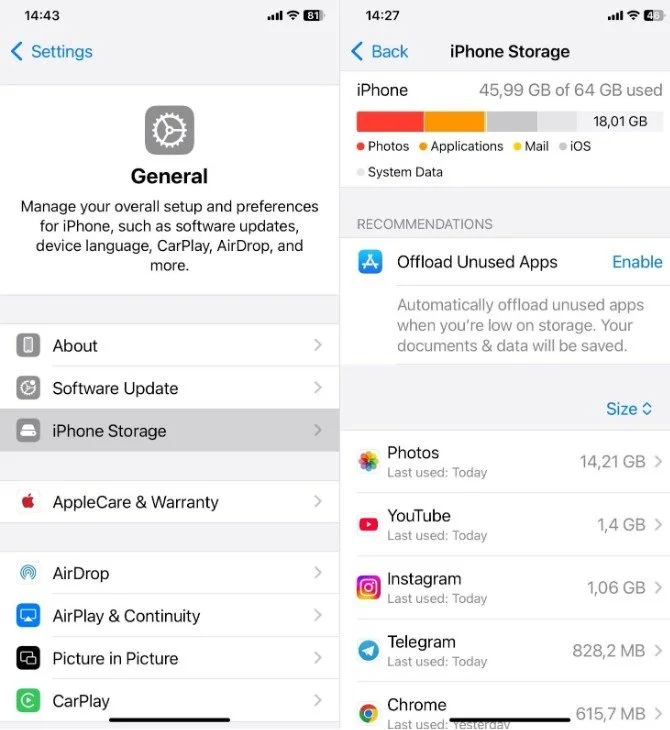
At the top, you’ll see a bar showing how your storage is divided - photos, apps, system files, and more. If Photos is taking up a massive chunk, then you’ve found the biggest culprit. Now, let’s go over what you can do specifically about your photo library and how to get more storage on your iPhone for free.
Use a Cleaning App to Remove Unnecessary Media
Of course, I could suggest scrolling through your library and deleting all the photos and videos you don’t need, but that’s too obvious - and way too tedious. So let’s talk about more convenient alternatives. iPhone cleaning apps offer a great way to automate all that and find out exactly what you might want to remove - like duplicates, images that look almost identical but aren’t complete copies, old screenshots, and large forgotten video files.
I've come across a lot of apps on the App Store, but one that really stands out to me is the Clever Cleaner: AI Clean Up App. It's super capable, and the best part is, it's completely free and has no annoying ads!
This app uses AI to clean up your media library as much as possible without you having to delete anything that truly matters. It has 4 cleanup tabs, each designed to tackle a different type. Let’s look at what they can do:
Similars – We all have those shots at slightly different angles that clutter our library. Clever Cleaner groups all similar images together and suggests the best one to keep, so you can confidently remove the extras. Apple’s built-in Duplicates album can spot exact copies, but it won’t catch similar-looking images - like the five nearly identical selfies you took to get the best shot. That means it can’t clean up as much as a cleaning app.
Screenshots – receipts, memes, random notes, things you saved “just in case” and never looked at again. This tab finds them all and lets you delete them in one tap.
Lives – Live Photos take up a lot more space because they store short video clips. If you don’t need the motion, this feature lets you convert them into still images, so you can free up storage without losing the actual photo.
Heavies – If you’ve ever tried sorting your files in the Photos app by size to figure out what’s taking up the most space, you know that you can’t - Apple doesn’t offer a way to do it. That’s where this tab comes in. It shows all your videos and large photos sorted from biggest to smallest, so it is easy to spot the biggest storage hogs and delete them.

Video Tutorial
Enable ‘Optimize iCloud Photo Storage’
Apple offers a feature called Optimize iPhone Storage. This is particularly helpful if iCloud is already in use and the phone stays connected to WiFi or mobile data. It works by storing full resolution photos and videos in iCloud and swapping them with smaller, resized copies on the iPhone. This approach helps guarantee that enough space remains available while still preserving access to all original files at any moment. Enabling this setting is straightforward. How to enable it:
- Open Settings.
- Tap your Apple ID at the top.
- Select iCloud > Photos.
- Make sure Sync this iPhone is enabled.
- Choose Optimize iPhone Storage instead of Download and Keep Originals.

Things to keep in mind:
- You need enough iCloud storage - Apple’s free 5GB won’t be enough if you have a big library.
- Accessing full-quality files requires an internet connection, so keep that in mind if you often work offline.
If all that wasn’t enough - or if you don’t have a particularly large media library on your iPhone - that’s okay. There are additional techniques to clear the iPhone for more storage without deleting anything important.
How to Make More Storage on iPhone Without Deleting Apps
If the Applications section shows up as the biggest offender in your iPhone Storage, there are a couple of things you can try. And I’ll specifically talk about methods that will keep your apps safe.
Offload Unused Apps Instead of Deleting Them
The first way to get more storage is to offload unused apps. Instead of deleting an app completely, this option removes the app itself but keeps all of its data. That means when you reinstall it later, everything will be right where you left it - logins, settings, files, and preferences.
The app icon stays on your home screen, and when you tap it, your iPhone automatically reinstalls the app as if it was never removed.
How to offload an app manually:
- Open Settings.
- Go to General > iPhone Storage.
- Scroll through the list and select an app that takes up a lot of space but isn’t used often.
- Tap Offload App and confirm.

This can instantly free up hundreds of megabytes or even gigabytes without actually deleting anything important.
Want to offload apps automatically? You can do this in the same settings, so you don’t have to manually offload apps one by one. Your iPhone will automatically remove apps you haven’t used in a while.
Here’s how to set it up:
- Open Settings.
- Go to General > iPhone Storage.
- Toggle on Offload Unused Apps in Recommendations.
Clear App Cache
Another method that involves apps might be even more effective since the cache and temporary files stored by apps can be far larger than the apps themselves.
What is app cache? Cache files are temporary data that apps store to make things load faster. For example:
- Safari saves website data so pages don’t need to reload completely.
- Instagram, TikTok, and Snapchat keep cached images and videos to speed up scrolling.
- Streaming apps like Netflix and Spotify store offline data so you don’t need to re-download everything.
Let’s see how to clear it - using Snapchat as an example:
- Open Snapchat and tap your profile icon (top-left corner).
- Tap Settings (⚙️) in the top-right corner.
- Scroll down to Clear Data and select Clear Cache.
- Confirm by tapping Clear.
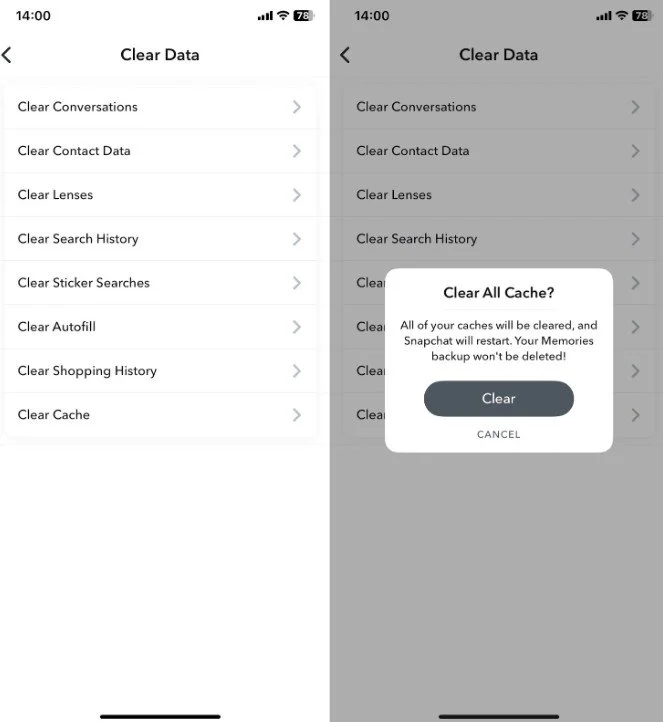
This removes temporary files, but your saved snaps, chats, and settings stay intact. Many apps have similar settings for clearing cache, but they might call it something different. If you want to clear cache for other apps, check their in-app settings for options labeled:
- Data & Storage
- Storage Usage
- Clear Cache
- Manage Storage
How to Free Up Even More Storage on iPhone (Bonus Methods)
If you’ve already optimized your media library, offloaded unused apps, and cleared cache but still need more space, I have a couple more methods up my sleeve.
Delete Large Attachments in Messages
Text messages don’t take up much space, but the photos, videos, and GIFs in your conversations do. Instead of deleting entire threads, you can remove just the biggest files. How to do it:
- Go to Settings > General > iPhone Storage.
- Scroll down and tap Messages.
- Under Documents & Data, tap Review Large Attachments.
- Select and delete the largest files you don’t need.
Check Downloads and Delete Old Files
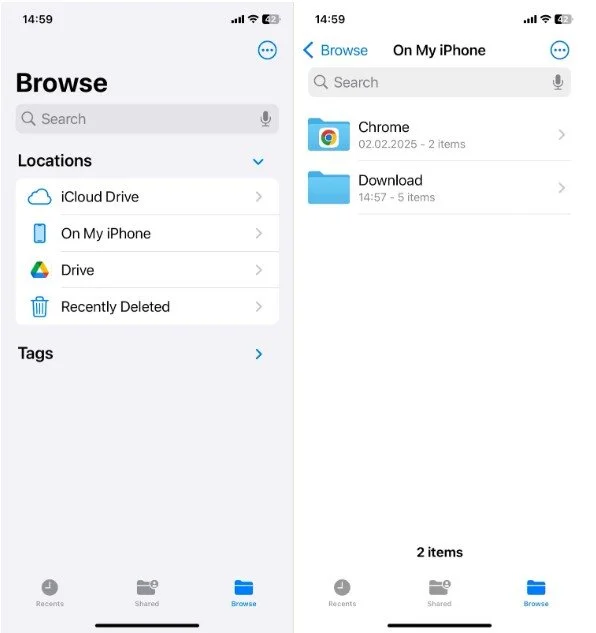
Your Files app might have large PDFs, videos, ZIP files, and other downloads that you forgot about. How to do it:
- Open the Files app.
- Go to Browse > On My iPhone > Downloads.
- Delete any unnecessary files.
Compress Your Photos and Videos
You can also compress your media library - it may not be the fastest process, but it can free up a huge amount of space without you having to delete anything. This is especially true for video compression. Large 4K recordings can take up gigabytes of storage in just a few minutes. And that’s just one video. With compression, you can bring it down to a few hundred megabytes.
For photos, you can use apps like Photo Compress – Shrink Pics. For video compression – Compress Videos & Resize Video. It lets you reduce file sizes while maintaining good resolution, so you can keep your videos without filling up your storage. If you want more control over bitrate, format, and resolution, Video Compressor & Editor gives you advanced settings to tweak the compression level and balance between file size and quality.
To conclude
I hope I helped you free up more storage on your iPhone. All these methods have been super useful for me in the past, and with all the tech developments - along with increasingly storage-hungry media, apps, and system files - I know these tricks will stay relevant for quite some time.


