How to Avoid Running Out of Phone Storage While Traveling

Sian Victoria © - Holding an iphone
You're standing in front of a stunning national monument, about to capture the perfect selfie, when your phone delivers that dreaded message—no more storage available. Although Apple's iCloud provides just 5GB of free storage, it usually doesn't help the situation. This problem is especially relevant for owners of iPhones with 64 and 128 GB, but those with a 1 TB device can also encounter a message about insufficient storage. There are different approaches to the problem, we will focus only on working and reliable options.
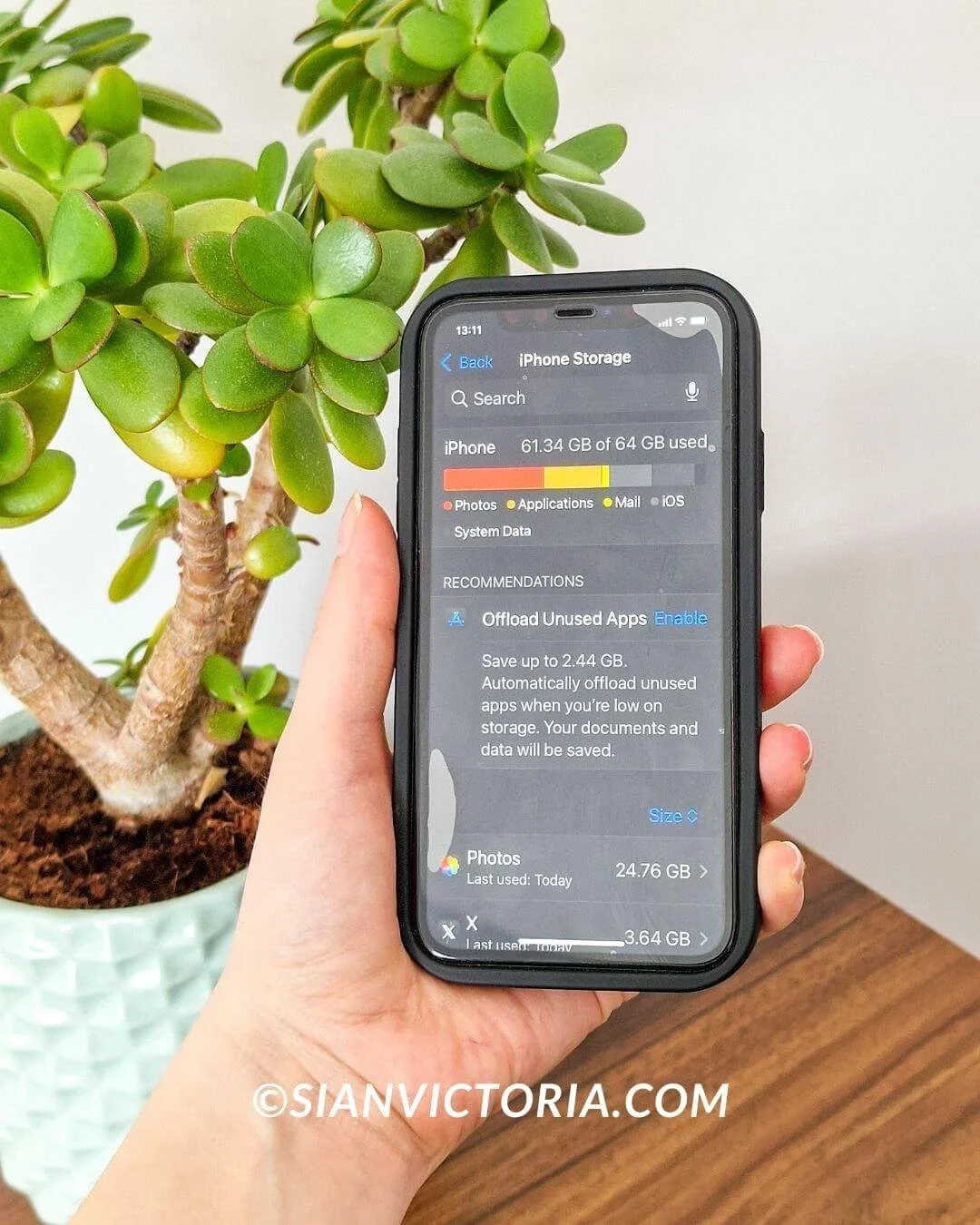
1. Browse Your Applications
Free up space on your phone by clearing out data-hogging apps. Many apps grow larger as you use them, taking up valuable storage unnecessarily. Check your phone’s settings to see app sizes and delete ones you rarely use.
For example, photo and video apps like Adobe Lightroom (8 GB) or Apple Photos (7 GB) can consume significant space on an iPhone. On Android, apps like Facebook or Instagram are common culprits. Don’t forget to check apps like Apple Podcasts, which often store large files you no longer need. By managing these, you can reclaim valuable gigabytes and keep your phone running smoothly.
2. Perform Automatic Cleaning
If you're tired of digging through your iPhone to find junk, why not grab a storage cleaner? Using a top cleanup app like CleanUp from the App Store is a smart move. It helps you get rid of duplicate photos, contacts, and similar pics without the hassle. Plus, it can even compress videos! That means you can quickly tidy up your pictures and photos, all on the go.
3. Expand Your Available Storage Space
When free cloud storage options fail, upgrading may be necessary. Google One offers the most generous free plan with 15 GB, compared to 5 GB from Apple iCloud and Microsoft OneDrive, and just 2 GB from Dropbox. However, most services only backup photos and videos—not your apps. With smartphones generating endless photos, upgrading is often unavoidable.
For only $0.99 per month, Apple and Microsoft provide 50 GB, while Google offers 100 GB for $1.99. But heavy users may need more—1 TB from Google costs $5.83 monthly, or for $9.99, Google, Apple, and Dropbox include 2 TB of storage.
4. Use Streaming Instead of Downloads
Many travelers preload music playlists, movies, or TV shows before their trips. While this may seem convenient, these files eat up gigabytes of storage. A smarter approach? Use streaming platforms like Spotify, Netflix, or YouTube Premium. Download only what you absolutely need for offline use, such as music for flights or regions with no internet access.
5. Compress and Resize Media
If you love capturing memories in high definition, your phone’s memory can fill up faster than you expect. A single minute of 4K video takes up about 375 MB, meaning a 10-minute clip could consume nearly 4 GB of storage. To avoid this, switch to a lower resolution for casual videos and photos. Apps like PhotoShrinker or Compress Videos can also reduce file sizes while maintaining decent quality.
6. Optimize Photo Storage
Yes, a vlogging camera is better for creating full-fledged vlogs, but let's be honest, only a smartphone is always with us. Optimize your photo storage with secure cloud solutions and reduce the risk of losing precious memories. Many people are surprised by how much storage photos occupy on their phones, but with a cloud backup, you can free up space while keeping your pictures safe.
For instance, the mail.com Mail & Cloud app offers an automatic photo backup feature, ensuring secure storage on all your devices. Once saved to the Cloud, you can delete photos from your phone to reclaim valuable storage space. Alternatively, iCloud users can activate “Optimize iPhone Storage” in Settings > Photos to keep lower-resolution images on their device, while full-sized versions stay safely stored in iCloud.
7. Clear the Cache
Clearing cached data can free up storage space and improve your phone's performance. Apps save temporary files like search history and settings, which can accumulate over time. To clear Safari's cache on your iPhone, go to Settings > Safari > Clear History and Website Data, select a timeframe, and tap "Clear history." For other apps, check their settings to see if they offer a clear cache option. While there’s no single button to clear all caches on iPhone, manually managing app data can boost your device’s efficiency. Stay proactive to keep your phone running smoothly.
To conclude
The main task is not just to find a way to free up space, but to do it as painlessly and quickly as possible. While it's probably just time to change your smartphone, there are still a few things you can do with your old iPhone. The listed tips allow you to move photos to the cloud, remove duplicates - this is absolutely painless for personal data. Even deleting applications will not cause harm, because most applications can synchronize with servers and after reinstallation you will get this data back. For example, when you return home and move the photo to your PC for storage. This way you save time and will be ready for unexpected shots at any time.